


This week is a bit different, for my primary post for the week, I‘ve actually guest published over on Packt Deep Learning stack.

This is a follow up post to a previous one of mine regarding memory: The Memory Illusion: Teaching your AI to Remember. So please follow the link above for that post.
Also note that I’ve kept working on the demonstration app referenced in the post. It now has a web UI and is meant to make the memory activities transparent to help you to learn how LLMs leverage this type of implicit memory system. (github)
In addition to the full post above, I have a sort of micro post this week
In reviewing the Anthropic SDK docs I noticed this enhancement to tool use which alleviates the dev from some boilerplate and adds some additional niceties.
Let the SDK Run Your Tools
Anthropic’s Tool Runner automates the call-execute-reply cycle.
If you have built an agent with Claude, you know the drill. You send a prompt, check if the model wants to call a tool, parse the JSON, execute your function, append the result to the history, and then call the API again.
It is the “Tool Use Loop,” and writing it manually is tedious boilerplate that breaks when you forget to append the assistant message.
Anthropic’s SDKs now includes a beta feature called Tool Runner that automates this entire cycle. It turns a multi-step state management problem into a single function call. As a beta feature, expect refinements, but the core pattern is solid.
Here is how it works and why you should switch.
The Problem: The “Ping-Pong” Effect
Without Tool Runner, your application manually relays messages between your code and Claude. You are responsible for maintaining the conversation history (state) and handling the back-and-forth traffic.
Manual Tool Use: Five Steps
To handle a simple tool call manually, you have to manage the loop and history yourself.
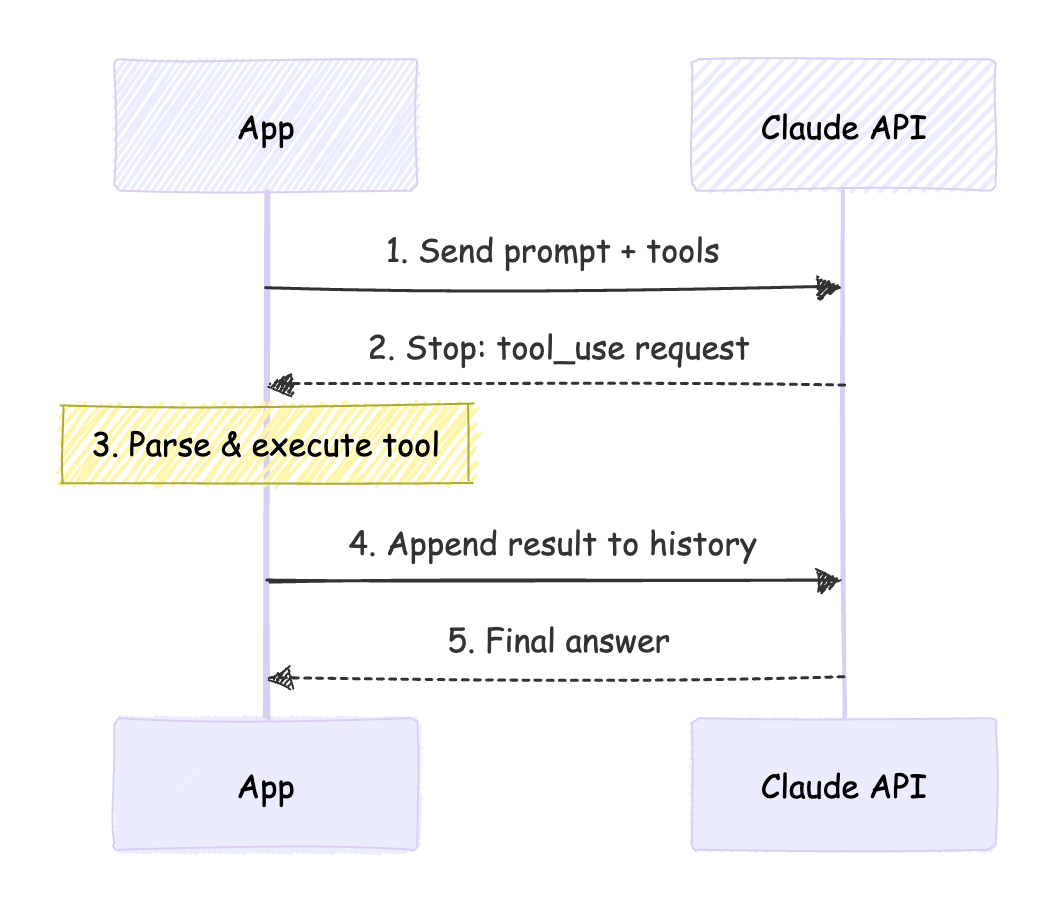
A tool use loop (without the Tool Runner), might look something like this:
# Define the tool function
def get_stock_price(ticker: str):
    “”“Get the current stock price.”“”
    return “150.00”

# Manually define tool schema
tool_definitions = [
    {
        “name”: “get_stock_price”,
        “description”: “Get the current stock price.”,
        “input_schema”: {
            “type”: “object”,
            “properties”: {
                “ticker”: {
                    “type”: “string”,
                    “description”: “Stock ticker symbol”
                }
            },
            “required”: [”ticker”]
        }
    }
]

messages = [{”role”: “user”, “content”: “What’s the stock price of AAPL?”}]

# 1. First Call
response = client.messages.create(
    model=”claude-3-5-sonnet-20241022”,
    messages=messages,
    tools=tool_definitions
)

if response.stop_reason == “tool_use”:
    tool_use = response.content[1]

    # 2. Parse and Execute (Manually)
    result = get_stock_price(**tool_use.input)

    # 3. Append Assistant’s Request to History
    messages.append({”role”: “assistant”, “content”: response.content})

    # 4. Append Tool Result to History
    messages.append({
        “role”: “user”,
        “content”: [{”type”: “tool_result”, “tool_use_id”: tool_use.id, “content”: result}]
    })

    # 5. Second Call (The “Reply”)
    final_response = client.messages.create(
        model=”claude-3-5-sonnet-20241022”,
        messages=messages,
        tools=tool_definitions
    )
    print(final_response.content[0].text)
Tool Runner: Two Steps
The Tool Runner acts as a wrapper around your session. It handles the validation, execution, and reply to the API automatically.
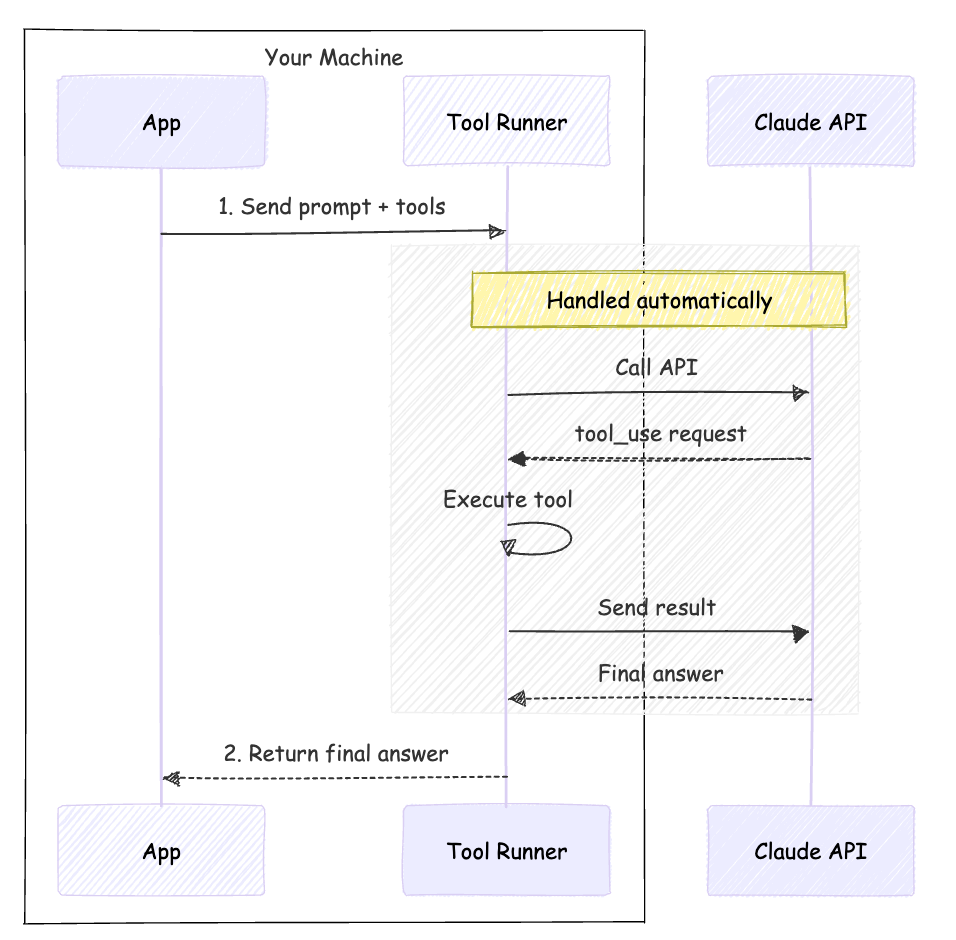
Here we see similar code to above but using the Tool Runner.
from anthropic import Anthropic
from anthropic.beta import beta_tool

client = Anthropic()

# Define Tool with Decorator
@beta_tool
def get_stock_price(ticker: str):
    “”“Get the current stock price.”“”
    return “150.00”

# STEP 1. Initialize Runner
runner = client.beta.messages.tool_runner(
    model=”claude-sonnet-4-5”,
    messages=[{”role”: “user”, “content”: “What’s the stock price of AAPL?”}],
    tools=[get_stock_price]
)

# STEP 2. Get Result
# The runner handles the execution loop and returns the final answer
final_text = runner.until_done()
print(final_text)
Client-Side Execution: Note that this code runs on your machine, not Anthropic’s servers. The “Runner” is simply a smart Python iterator in the SDK that automates the API calls for you.
Beyond the Basics
Automatic Schema Generation
The @beta_tool decorator automatically inspects your function’s signature and docstring to generate the JSON schema that Claude needs. Compare the manual schema we wrote earlier (15+ lines of nested dictionaries) to the decorated version—just the function signature and docstring.
The decorator handles type hints, parameter descriptions, and required fields automatically. Your function must return content blocks (text, images, or documents) or strings, which are converted to text blocks. Structured JSON objects must be encoded as strings before returning, and non-string primitives (numbers, booleans) must also be converted to strings.
This eliminates an entire category of errors where your schema definition doesn’t match your actual function signature.
The boilerplate reduction is the headline, but Tool Runner handles several production pain points worth knowing.
Parallel Tool Execution
When Claude wants to call multiple tools at once, you must return all results in a single message with precise ordering. Get it wrong and Claude’s next response suffers. Tool Runner manages this automatically.
Streaming
Add stream=True when you build the runner to get real-time responses as the runner iterates.
# When streaming, the runner returns BetaMessageStream
for message_stream in runner:
    for event in message_stream:
        print(’event:’, event)
    print(’message:’, message_stream.get_final_message())

print(runner.until_done())
Context Compaction
Long-running agents accumulate conversation history until they hit token limits. Tool Runner can automatically summarize older exchanges to stay within bounds. Essential for multi-step workflows.
Error Recovery
When Claude sends malformed parameters, the runner handles the error-and-retry dance. You define the tool; it manages the conversation repair.
Conclusion
If you’ve spent hours debugging message history issues, Tool Runner eliminates that entire class of errors. By offloading the state management and execution loop to the SDK, you can focus on what matters: defining high-quality tools and writing better prompts.
Check out the Anthropic SDK documentation to see it in action.